

Here’s how to create viral ads in minutes with AI.
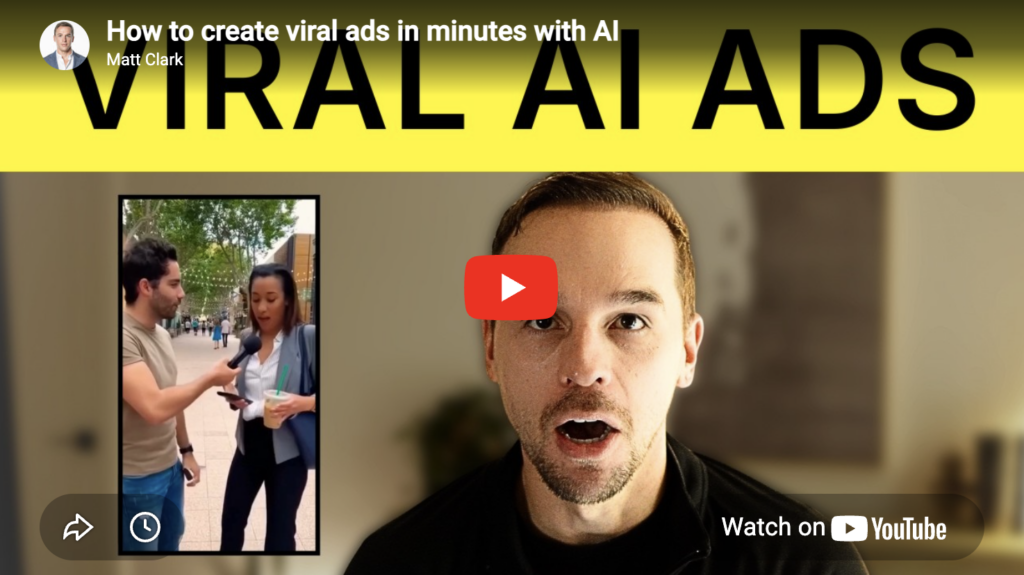
I made this ad using the exact steps I’m about to show you. We then launched it in our business, which will do $65 million this year.
We make about $100 per customer in the first year.
This ad is getting us buyers for $17.
That means we’re getting a 500% return on our money with this ad.
And it took only minutes to create with AI.
Here’s how:
Step 1. Generate ad ideas
Use this prompt in any AI chat tool (Claude, Gemini, ChatGPT, Grok):
Prompt
You are a helpful assistant that...

I want to create a realistic, 5-clip mini sales video ad for Meta.

Here is my product link:

👉 **[PASTE PRODUCT URL HERE]**

This ad will follow this structure:

1. Scroll Stopper (1–2 seconds, realistic but attention-grabbing)
2. Key Benefit Clip #1
3. Key Benefit Clip #2
4. Key Benefit Clip #3
5. CTA Screen (static or minimal motion)

We will build this step-by-step.

---

**STEP 1 — Scroll Stopper Options**

Based on the product page, generate **3 realistic scroll-stopper concepts**.

Rules:

- Must feel like a real, shocking video someone would post on Facebook (not cartoony)
- Visually striking or pattern-interrupting
- Make it shocking and surprising
- Semi-related to the product
- Simple enough to create with AI video
- Examples: Person in the streets talking with someone; Close up of a weird food, ingredient, or item (such as a healthy beverage company using a very close zoom out of a blueberry); action shot of something destructive (such as Ridge wallet drilling into a wallet with a saw);
- 1–2 seconds max

Format like this:

**SCROLL STOPPER OPTIONS**

1. [Short headline] — 1–2 sentence description
2. [Short headline] — 1–2 sentence description
3. [Short headline] — 1–2 sentence description

Then say:

👉 Reply with **1, 2, or 3** to choose one.

Or type **REGENERATE** for new options.

Do NOT move to the next step until I choose.

---

**AFTER USER CHOOSES**

Then generate:

**STEP 2 — Key Benefit Clips**

Identify the 3 strongest purchase-driving benefits from the product page.

Rules:

- Benefits must be concrete and specific
- Focus on outcome, not generic claims
- Each benefit should support a 5–7 second clip
- Make them feel persuasive, like a mini VSL

Format like this:

**KEY BENEFIT OPTIONS**

1. [Benefit headline] — 1–2 sentence explanation
2. [Benefit headline] — 1–2 sentence explanation
3. [Benefit headline] — 1–2 sentence explanation

Then say:

👉 Type **ACCEPT**,

or edit any benefit,

or type **REGENERATE**.

Do NOT move to CTA until I confirm.

---

**AFTER BENEFITS ARE CONFIRMED**

Then ask:

**STEP 3 — CTA Screen**

Ask me:

- What offer should be shown? (discount %, bundle, free shipping, etc.)
- Any urgency? (limited time, today only, etc.)
- Brand tone? (premium, aggressive, clean, bold, etc.)

Wait for my answer before generating the CTA concept.

---

No scripts yet.

No image prompts yet.

We are only structuring the ad.
Step 2. Have AI generate starting image and video clip prompts
Now that you have an idea of the ad you’re going to create and you’re ready to generate its assets, use this second prompt to produce starting image and video clip prompts.
Prompt
You are a helpful assistant that...

We have already finalized:

- The Scroll Stopper concept
- The 3 Key Benefits
- The CTA details

Using the existing context in this conversation, generate the production prompts for the full 5-clip ad.

This ad must feel:

- Realistic (not cartoonish)
- Clean and believable
- Shot like modern UGC or polished brand content
- Suitable for Meta ads

Do NOT include:

- On-screen text (except for the final CTA image)
- Editing instructions
- Camera terminology

Only generate visual prompts.

---

**OUTPUT FORMAT (Follow Exactly)**

---

**CLIP 1 — SCROLL STOPPER**

**Starting Image Prompt:**

(A vivid, realistic image description that clearly represents the scroll-stopping moment. Highly visual. Photorealistic. Don’t assume any context from other images. Include all details necessary.)

**Video Prompt:**

- Assumes the starting image is the first frame
- Natural, simple movement only
- Visually compelling but realistic

---

**CLIP 2 — KEY BENEFIT 1**

**Starting Image Prompt:**

(A vivid, realistic image description that clearly represents the key benefit 1. Highly visual. Photorealistic. Don’t assume any context from other images. Include all details necessary.)

**Video Prompt:**

- Continues naturally from the image
- Simple, believable movement

---

**CLIP 3 — KEY BENEFIT 2**

**Starting Image Prompt:**

(A vivid, realistic image description that clearly represents the key benefit 2. Highly visual. Photorealistic. Don’t assume any context from other images. Include all details necessary.)

**Video Prompt:**

- Continues naturally from the image
- Simple, believable movement

---

**CLIP 4 — KEY BENEFIT 3**

**Starting Image Prompt:**

(A vivid, realistic image description that clearly represents the key benefit 3. Highly visual. Photorealistic. Don’t assume any context from other images. Include all details necessary.)

**Video Prompt:**

- Continues naturally from the image
- Simple, believable movement

---

**CLIP 5 — CTA END SCREEN**

**Starting Image Prompt (Only):**

- Clean promotional layout
- Product clearly visible
- Offer visually prominent
- Tone aligned with approved brand direction
- Designed to hold for several seconds

(No video prompt for this section.)

---

Rules:

- Keep visuals simple and producible with AI tools.
- Focus entirely on visual storytelling.
- Do not add strategy commentary.
- Do not explain reasoning.
- Only output the prompts.
Step 3. Produce your video clips with AI
Use Google Flow to produce your starting images for each clip with Google’s Nano Banana tool and your video clips with its Veo tool.
- Go to Google Flow (https://labs.google/flow/about)
- Copy and paste in your first starting image prompt to generate your first image
- Use that image as a reference to produce your first video clip using the first video clip prompts you generated
- Repeat for each image and video clip
Step 4. (Optional) Generate your own background music and sound effects
Next, as an optional step to upgrade your ad, generate your own background music and sound effects. I recommend using ElevenLabs for this. Here’s a helpful prompt to simplify this process:
Prompt
You are a helpful assistant that...

We have already generated the 5 visual clips for this ad.

Now we are adding a **minimal audio layer**.

Constraints:

- Maximum **1 background music track**
- Maximum **2 voiceover lines total**
- Maximum **2 sound effects total**
- Keep everything clean, subtle, and professional
- This is a Meta ad

Do NOT rewrite the ad.

Do NOT change the visuals.

Only generate the audio elements and placement instructions.

---

**Step 1 — Background Music**

Generate:

- One simple background music description prompt I can use in a music generator.
- It should match the brand tone and emotional direction of this ad.
- Keep it subtle and non-distracting.
- No dramatic cinematic builds.

Format:

**BACKGROUND MUSIC PROMPT:**

[Music generation prompt]

**Placement:**

(Example: Starts at Clip 1 and plays softly through CTA.)

---

**Step 2 — Voiceover (Maximum 2 Lines Total)**

Generate:

- No more than two short voiceover lines (each under 12 words).
- Place them strategically for maximum impact.
- Do not narrate everything.
- Make them persuasive, not descriptive.

Format:

**VOICEOVER LINE 1:**

Text:

Placement: (Which clip and at what moment)

**VOICEOVER LINE 2 (Optional):**

Text:

Placement:

If only one line is needed, say so.

---

**Step 3 — Sound Effects (Maximum 2 Total)**

Generate:

- No more than two subtle sound effects.
- They should enhance a moment, not distract.
- Avoid cheesy or exaggerated sounds.

Format:

**SOUND EFFECT 1:**

Description prompt for sound generator:

Placement:

**SOUND EFFECT 2 (Optional):**

Description prompt for sound generator:

Placement:

If none are necessary, say: “No sound effects recommended.”

---

Rules:

- Less is better.
- Silence is allowed.
- Do not add commentary.
- Do not exceed limits.
- Only output the structured audio plan.

We are keeping the rest of the ad exactly the same.
Step 5. Combine clips using any video editor
- Download each clip
- Trim the excess (usually the first few seconds or last few seconds of each clip)
- (Optional) Add generated background music and sound effects
- Combine with any video editor such as CapCut, Camtasia, etc.
Now you have a simple 5-step process to produce an unlimited number of high-quality, top-performing ads for any platform with AI.